For dealers
The dealer portal
This page is for dealers. Your mall gave you a login when your booth was assigned. Sign in from the Vendor & staff sign in link on the mall’s website.
Your dashboard
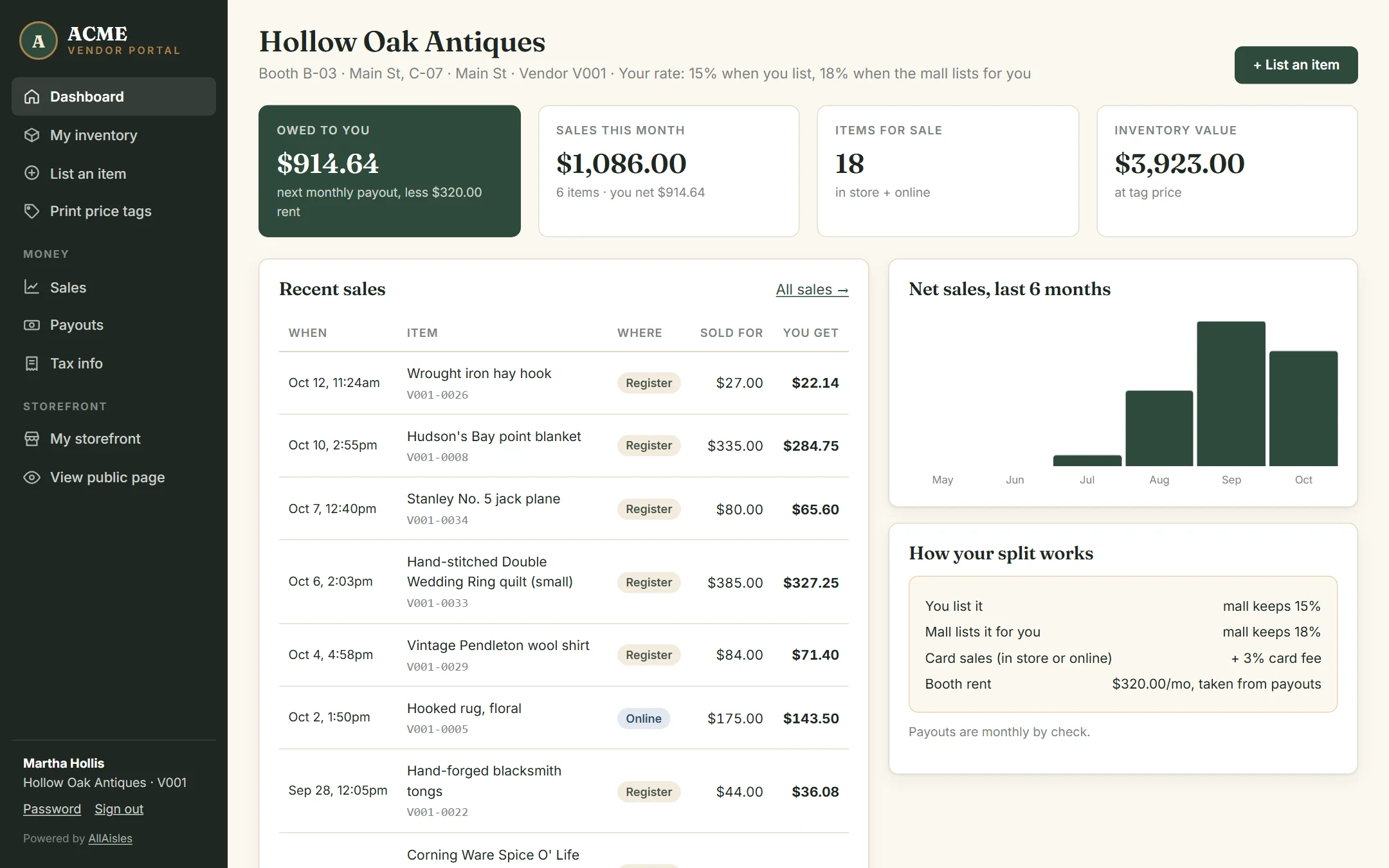
- Owed to you — everything you’ve earned that hasn’t been paid out yet, before booth rent.
- Sales this month — what sold and what you netted.
- Items for sale and inventory value at tag price.
- How your split works — your commission, the listing-service rate if the mall lists for you, card fees and booth rent.
List an item
- Click + List an item.
- Give it a clear title — what a shopper would search for (“Pyrex Butterprint mixing bowl set”).
- Add a description, category, era, condition, maker, size and weight. Weight is used to quote shipping.
- Add photos — up to eight, phone photos are fine. The first is the main photo.
- Enter the price and quantity. When this sells shows exactly what you’ll receive.
- Untick Can be shipped for big or fragile pieces; shoppers will see “pickup only”.
- Click List item — or Save & list another to keep going.
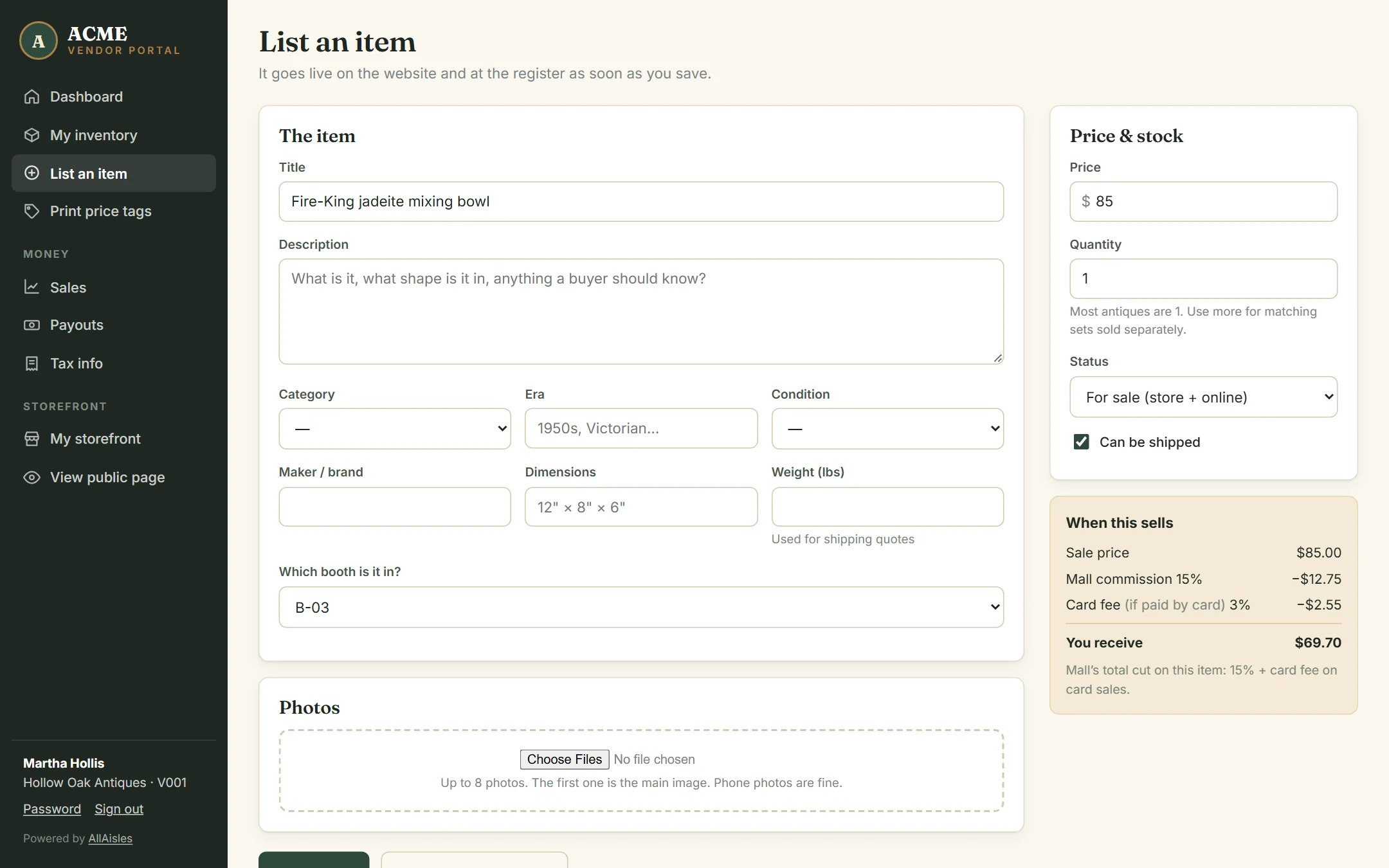
Each item gets a SKU starting with your dealer code (like V001-0042). It’s on the tag, and it’s how the register finds your item.
Price tags
Click Print price tags for a sheet of 2.5″ × 1.5″ tags with the barcode, price, SKU and booth for your items. Print, cut and attach. The register scans the barcode.
My inventory
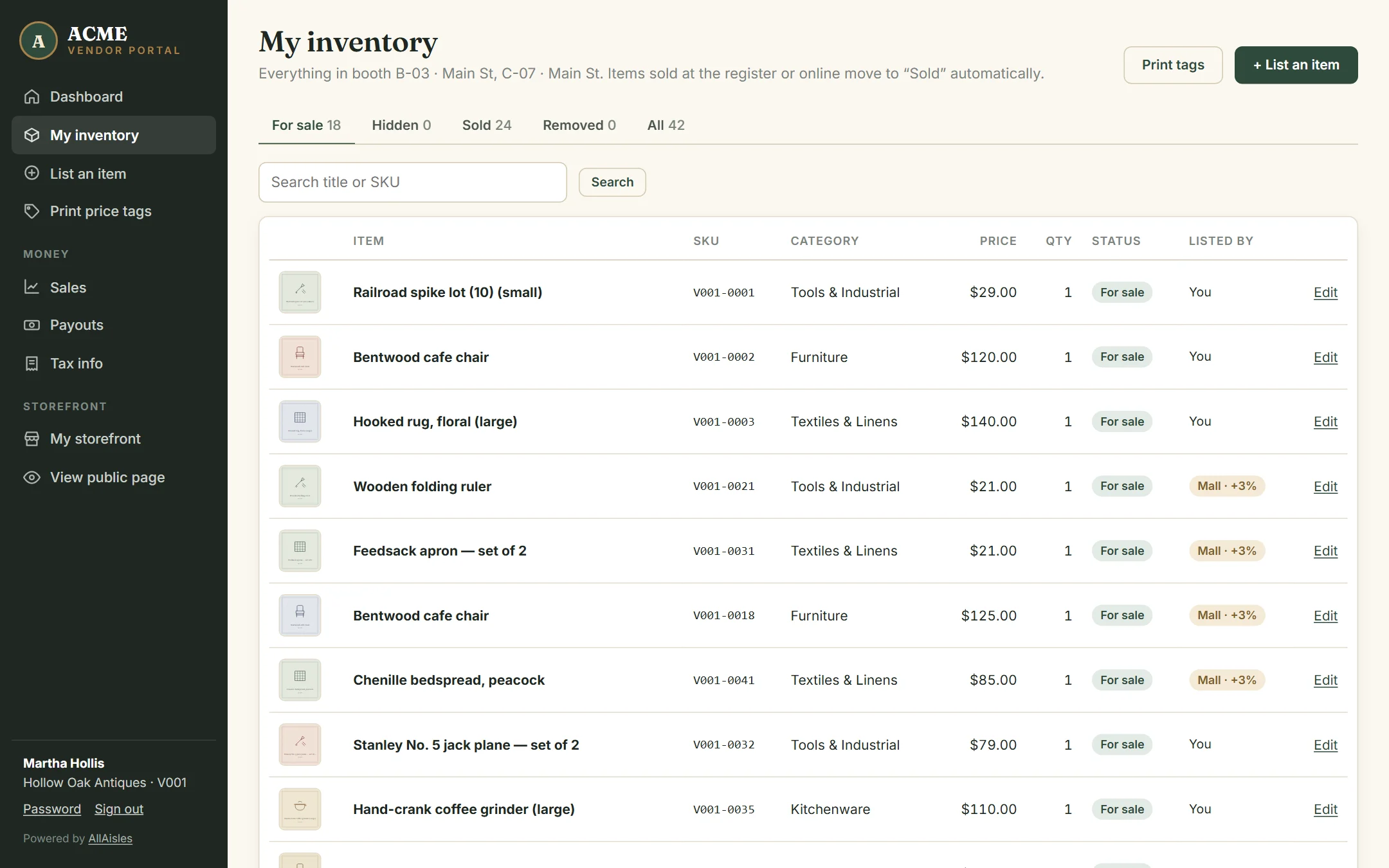
Tabs show what’s for sale, hidden, sold and removed. Click Edit to change a price, add photos, or mark something removed when you take it out of your booth. If the mall listed an item for you, it shows a Mall · +3% badge so you know the listing-service fee applies.
Sales
Every item you’ve sold, with the date, where it sold, how the customer paid, the commission, any listing and card fees, what you got, and which payout it’s in. Pick a date range at the top.
Payouts
Your statements from the mall, and what you’ve earned that’s waiting for the next one. Open a statement to see every sale in it — and print it for your records.
Tax info
The mall may need your W-9 details to send you a year-end tax form. Open Tax info, fill in the same details as an IRS W-9, tick the certification and type your name to sign. Your tax ID is encrypted and shown only as its last four digits. The same page shows your totals for any year: gross sales, what the mall kept, and what you were paid.
My storefront
Your page on the mall’s website. Add a tagline, your specialties and a few words about yourself — shoppers who like your booth will come back to it. Click View public page to see it.